 3Guide Docs
Build your knowledge base
Teach 3Guide your app's pages and buttons, three ways, then keep it current on every release.
The knowledge base is 3Guide's map of your app: its routes (pages), the elements on them (buttons, inputs, links, forms) and how they fit together. Guides, help hints, the chat's on-the-spot walkthroughs and the AI Assistant's page actions all use it, so the better the map, the more reliably they point at the right thing.
Choose one way to build it:
| Best when | You'll need | |
|---|---|---|
| A. Scanner CLI | You have the app's source code | Node.js 18+ and your Admin API Key |
| B. Deep Scan in the extension | No code access, or pages behind a login | Chrome and the extension |
| C. Upload a scan file | Someone already produced a scan JSON | The .json file |
Option A: Scan your code with the CLI
The scanner reads your source code, works out your framework, and extracts routes and interactive elements. It collects structure only, not your data or secrets.
Get your Admin API Key. In the dashboard open Settings → SDK Installation and copy the Admin API Key (sk_live_…). Keep it secret: treat it like a password.
Install the scanner in your project (or globally with npm i -g @guideai/scanner):
npm install --save-dev @guideai/scannerPreview the scan. Nothing is uploaded:
npx guideai-scan --dry-run --output scan-results.jsonIt prints the detected framework and the number of routes and elements, and saves the full result to scan-results.json for you to inspect.
Scan and upload:
npx guideai-scan --key sk_live_YOUR_ADMIN_KEYIf your app isn't at the root of the repository, point at it with --dir, for example --dir ./apps/web.
Check it arrived. Open Data & Insights → Knowledge Base in the dashboard and follow Review the result below.
Supported frameworks: Next.js (App Router and Pages Router), React Router, Vue Router / Nuxt, Angular, Remix, SvelteKit and plain HTML. All flags are in the Scanner reference.
Option B: Deep Scan with the extension
Deep Scan crawls a running app in your browser, while you're signed in. It can map pages behind a login, and apps you don't have the code for.
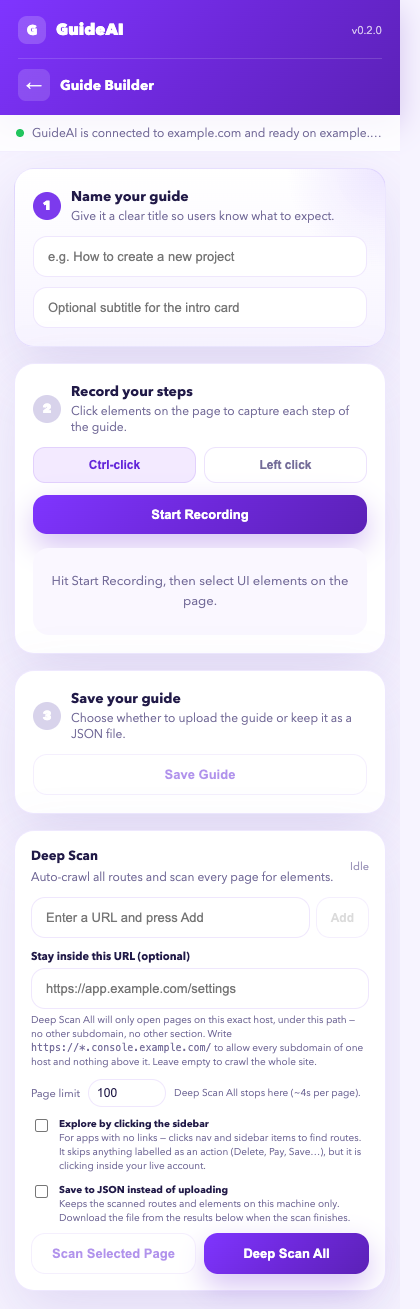
Open the app and sign in to it in Chrome, in the tab you want to scan.
Open the extension → Guide Builder and scroll to Deep Scan.
Choose what to scan:
- Enter a URL and press Add to queue specific pages. Scan Selected Page(s) scans only those.
- Deep Scan All discovers pages by following links, starting from the current tab.
- Stay inside this URL (optional) keeps the crawl on one host and path. For example
https://app.example.com/settingsscans only the settings area. Usehttps://*.console.example.com/to allow every subdomain of one host. - Page limit caps the crawl (default 100 pages, about 4 seconds each).
Optional settings:
- Explore by clicking the sidebar: for apps with no normal links, it clicks navigation and sidebar items to find pages. It skips anything labelled as an action (Delete, Pay, Save…), but remember it is clicking inside your live account, so use a test account where you can.
- Save to JSON instead of uploading: keeps the results on your machine. Download the file when the scan finishes and upload it later with Option C.
Let it run. Keep the tab open. The panel shows which page it's on, how many elements it has found, and any errors. You can Stop scan at any time and keep what it found.
On a site that isn't registered under Administration → Sites, Deep Scan always saves to JSON. Register the site to upload directly.
Option C: Upload a scan file
Got a scan JSON from a dry run, a teammate, CI or the extension? Open Data & Insights → Knowledge Base, click Upload Scan and choose the file.
Review the result
Everything lives on Data & Insights → Knowledge Base:
- Snapshot Versions: every upload is kept. You can open older versions and see when each was scanned, with which framework, and how many routes and elements it found.
- Knowledge Graph Explorer: tree, flowchart and galaxy views of your app's pages and elements. Use it to spot missing pages.
- Learned Hidden UI: elements that only appear after opening a menu or tab. The extension learns how to open them, so guides can point at things that aren't on screen yet. Delete a path here if it's wrong.
- Refresh: makes the assistant use the newest snapshot straight away instead of a cached copy (the cache otherwise expires within minutes).
Keep it up to date
Re-scan whenever your UI changes. The easiest way is to scan on every production build.
import { defineConfig } from 'vite'
import { guideai } from '@guideai/scanner/vite'

export default defineConfig({
  plugins: [guideai({ siteId: 'YOUR_SITE_ID' })],
})
The build plugins read the key from the GUIDEAI_API_KEY environment variable and only run when NODE_ENV is production (change this with the only option, e.g. only: ['production', 'staging']). Store the key as a secret in your CI, never in the repository.
Add documents for the assistant
The app map covers where things are. For what things mean (policies, pricing rules, product manuals), upload documents for the AI Assistant: PDF, Word, text, Markdown, CSV, JSON or HTML. That's done per API connection, in AI Assistant → Add knowledge documents.