 3Guide Docs
Configure Experience Studio
Give the widget a welcoming Home with your assistant, demos, updates, articles and support in one place.
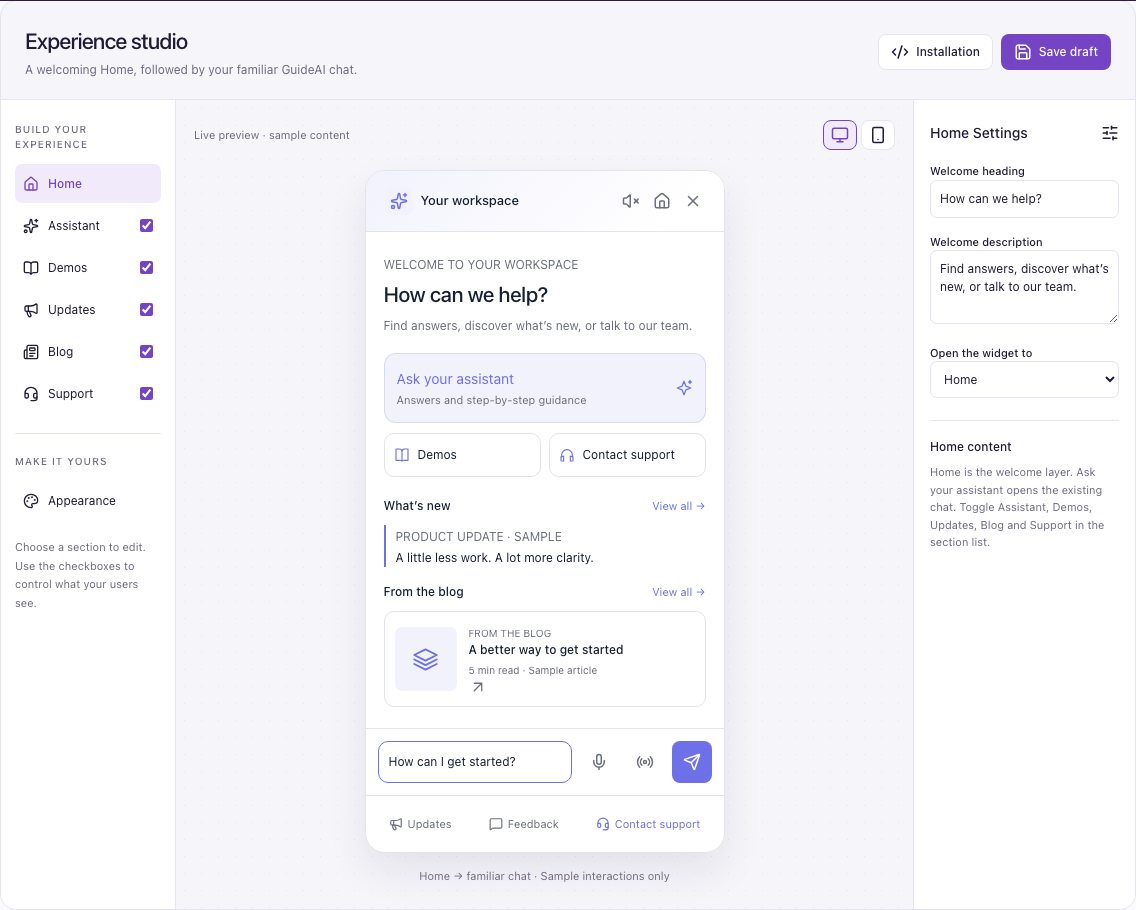
Experience Studio adds a Home screen before the familiar 3Guide chat. It is optional and off by default. When it is enabled, visitors can find answers, watch documentation demos, read updates, open articles and contact support without searching for the right chat mode first.
Before you start: 3Guide is installed, and you have access to Settings → SDK Installation.
1. Configure the Home screen
Open Settings → SDK Installation and choose Experience studio. You can configure:
| Section | What visitors see |
|---|---|
| Home | Your workspace name, welcome title and description |
| Assistant | The normal Guidance/Assistant conversation |
| Demos | Published Guide Pro demos marked as documentation |
| Updates | Short updates you write in the editor |
| Blog | Articles you add or import from public URLs |
| Support | Built-in support or an external support destination |
| Feedback | A link to the feedback destination you configure |
The Demos, Updates, Blog and Support sections each have their own switch. Turning one off hides its entry without changing the underlying guides, chat, demos or support configuration. Assistant opens your existing chat and does not need a separate switch.
2. Save and publish
Use the two actions at the top of the editor:
- Save draft stores the configuration privately.
- Publish Home makes the saved Home and its appearance live.
Saving a draft does not change what visitors see. Publish after saving when you are ready. Changes appear on the next page load. You can deactivate Home later; the normal chat experience remains available.
The generated installation snippet opts into the published workflow. Existing installations need the updated snippet once; later Home publications do not require replacing it.
3. Connect support
Home can use one of these support destinations:
- Built-in Live Support: conversations arrive in the GuideAI inbox.
- Tawk.to: paste the public embed URL; no API key is required.
- Zendesk: open an installed Messaging or Classic widget.
- HubSpot: open the installed chat widget.
- Custom Helpdesk: handle the
guideai:open-external-supportbrowser event. - Link or email: open a URL or mail address as a fallback.
See Live Support for the inbox and external provider details.
4. Open Home from your own UI
Add a destination to any button or link:
<button data-guideai-open="home">Get help</button>
<button data-guideai-open="demos">Browse demos</button>
<button data-guideai-open="support">Contact support</button>
Supported destinations are home, chat, guidance, assistant, demos,
blog, updates and support. Home, Blog and Updates only open when their
sections are enabled. Existing data-guideai-open-chat buttons continue to
work.
Publishing checklist
- Save the draft.
- Confirm the preview shows only the sections you want.
- Publish Home.
- Reload a page with the installed snippet.
- Test Home, Assistant, Demos and Support from both the launcher and any custom buttons.