 3Guide Docs
Make demos with Guide Pro
Record an interactive demo of your product, polish it with AI, then share it, embed it or turn it into a video or written procedure.
A Guide Pro demo is a clickable copy of a workflow in your product. Viewers click through it at their own pace, with no login and no access to your live app. The same demo can go on your website to capture leads, into a sales email, or to new staff as training, and it exports to video, PDF and Markdown.
You'll need: a 3Guide account and the Chrome extension for recording. Nothing needs to be installed in your app.
1. Create the demo
Open Content → Guide Pro in the dashboard and choose how to start:
| Button | What it does |
|---|---|
| Create Demo | Records a workflow in your browser with the extension (below) |
| Blank Demo | Starts empty. Build it step by step from screens, text and media cards, and lead forms. |
| New Mobile Demo | Upload screenshots from your mobile app to build a tappable demo in a phone frame |
Recording with the extension
Open the app you want to demo in Chrome, and go to where the workflow starts.
Open the extension → Guide Pro, and give the demo a title.
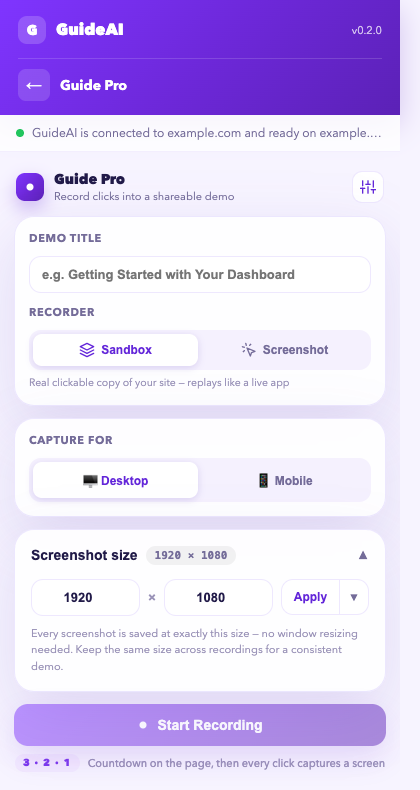
Choose the Recorder:
- Sandbox: a real, clickable copy of each page that replays like the live app. Best for training and practice. Sandbox is a paid-plan feature.
- Screenshot: one clean image per click. The classic demo format, and the one to use for anything you'll export to the extension.
Then choose Capture for Desktop or Mobile, and a Screenshot size (e.g. 1920 × 1080). Keep the same size across recordings so demos look consistent.
Click Start Recording. After a 3-2-1 countdown on the page, every click captures a screen. Work through the task the way you'd show a colleague. Your typing and scrolling are captured too.
Click Stop & Save. The screens are saved as a draft demo. Open it in the dashboard to add tooltips and hotspots.
The settings icon in the recorder has extra options: automatic zoom on key areas, including the 3Guide chat widget in snapshots, a floating recording indicator, a keyboard shortcut for short flow clips, and a quick-access Guide Pro icon on the page.
2. Polish it
Open the demo from Content → Guide Pro. In the builder:
- AI tools → Enhance Demo writes the tooltip text and narration for every step, and picks a zoom or scroll for each screen. Save the demo before enhancing.
- Add Voiceovers adds natural narration to every step. Choose a stock voice, or record or clone your own (voice cloning needs a paid plan).
- Edit steps: reorder, rewrite text, move hotspots, blur anything sensitive, and add a Lead form step to collect viewer details.
- Desktop and mobile flows: build both versions of the same demo. Shared steps stay in sync.
- Description: the AI chat uses it to match this demo to user questions, so describe what the demo shows in plain words.
Click Preview to watch it as a viewer would.
3. Share it
Click Publish & Copy Link. You now have a public link (demo.3guideai.com/share/…) that anyone can open, with no login.
To put it on a website, open Share demo and pick how it appears:
- Inline: the demo plays where it sits on the page
- Overlay: a poster with a heading and button. One click opens the demo full-screen.
- Popup: opens from any button or link, over a backdrop
Set the heading, button text and colours, copy the embed code, and paste it into your site, help centre or docs.
4. Export it
| Export | What you get | Plan |
|---|---|---|
| PDF or Markdown, as a Walkthrough | A narrated, story-style guide with screenshots, for handovers, training or your knowledge base | All plans |
| PDF or Markdown, as an SOP | A controlled procedure with numbered steps, expected results and sign-off fields (document ID, effective date, process owner, approver) | All plans |
| Video (MP4) | The demo rendered with voiceover and zoom, for your LMS, YouTube or email. You're told when it's ready to download. | Paid plans |
| GIF | A short silent loop for Slack, wikis and emails | Paid plans |
Save the demo before exporting.
5. See who watched
The Guide Pro page shows Viewer analytics for published demos: viewers, completion, CTA clicks and countries. Lead submissions lists everyone who filled in a lead form, with their contact details.
Let the chat use your demos
When 3Guide is installed in your app, published demos become answers: a user who asks the chat "show me how reporting works" can be shown the matching demo. Write a clear Description on each demo so the right one is picked.
Play demos in the extension
From a demo's menu you can export it to the extension. It's then listed and playable in the extension, for example to walk staff through a process in an app you don't own, without being published to the public. Only screenshot-based demos can be exported this way.
Set up the chat and AI Assistant
Choose what the chat bubble does, connect your API so the Assistant can get things done, add documents, and set up hand-off to your team.
Company workflows
Teach your team the approved way to do tasks in any web app, including tools you didn't build such as Salesforce or your HR system.