 3Guide Docs
Install the Chrome extension
Install the 3Guide extension, sign in, and learn what each tool in it does.
The 3Guide extension (listed as GuideAI in Chrome) is how you record guides, help hints and Guide Pro demos, scan apps in the browser, and bring 3Guide to apps you don't own, such as Salesforce or internal tools.
You'll need: Google Chrome (or another Chromium browser such as Edge or Brave) and a 3Guide account.
Add it to Chrome
Open the 3Guide extension on the Chrome Web Store and click Add to Chrome, then Add extension.
Then pin it so it's always one click away: click the puzzle-piece icon in Chrome's toolbar, and the pin next to GuideAI.
Sign in
Click the extension icon to open it.
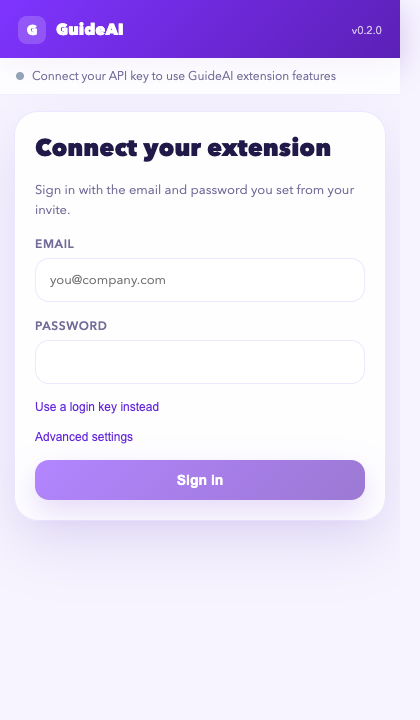
Sign in one of two ways:
- Email and password: the details you use for the dashboard, or the ones you set from a team invite. If you belong to more than one workspace, choose which one to connect.
- Login key: click Use a login key instead and paste an Admin API Key (
sk_live_…) from Settings → SDK Installation in the dashboard.
Choose how you'll use it
The first time you open the extension on a site, it asks how you'll use 3Guide there:

- I build or own this app: you'll teach 3Guide your team's workflows.
- I use this app: you'll be guided through workflows others have published. Add your job role and department so you see the ones meant for you.
You can skip this and change it later. It's explained in Company workflows.
What's in the extension
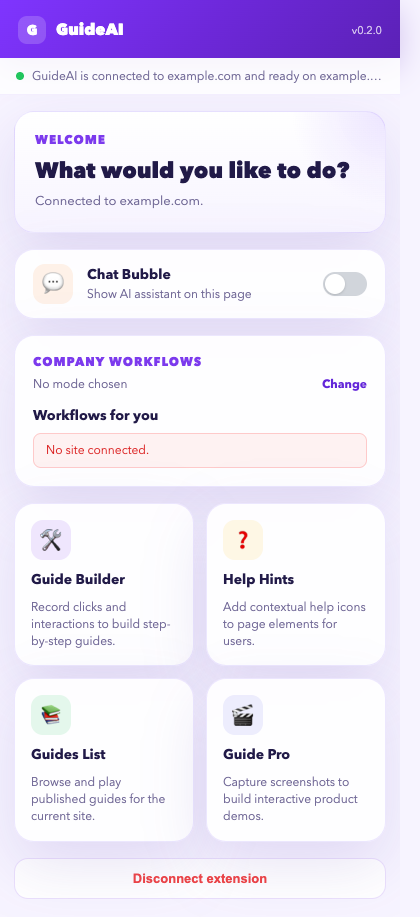
The bar at the top tells you whether the current tab belongs to one of your sites ("GuideAI is connected to example.com").
| Tool | What it does | Full walkthrough |
|---|---|---|
| Chat Bubble | Shows the 3Guide chat on the current page, for a registered site, even where the snippet isn't installed | AI Assistant |
| Guide Builder | Records clicks into step-by-step guides, and runs Deep Scan to map an app | Guides, Knowledge base |
| Help Hints | Adds help icons to elements on the page | Help hints |
| Guides List | Browse and play the published guides for this site | Guides |
| Guide Pro | Captures screens into an interactive demo | Guide Pro |
| Company workflows | Workflows for the app you're on, filtered to your role | Company workflows |
On a site that isn't registered?
You'll see "Not a registered GuideAI site". The Guide Builder still works there, but scans are saved as a JSON file only. Guides, help hints and the chat bubble need the site to be added under Administration → Sites in the dashboard first.
Disconnect or switch workspace
Click Disconnect extension at the bottom of the home screen, then sign in again with different details.